Github Source
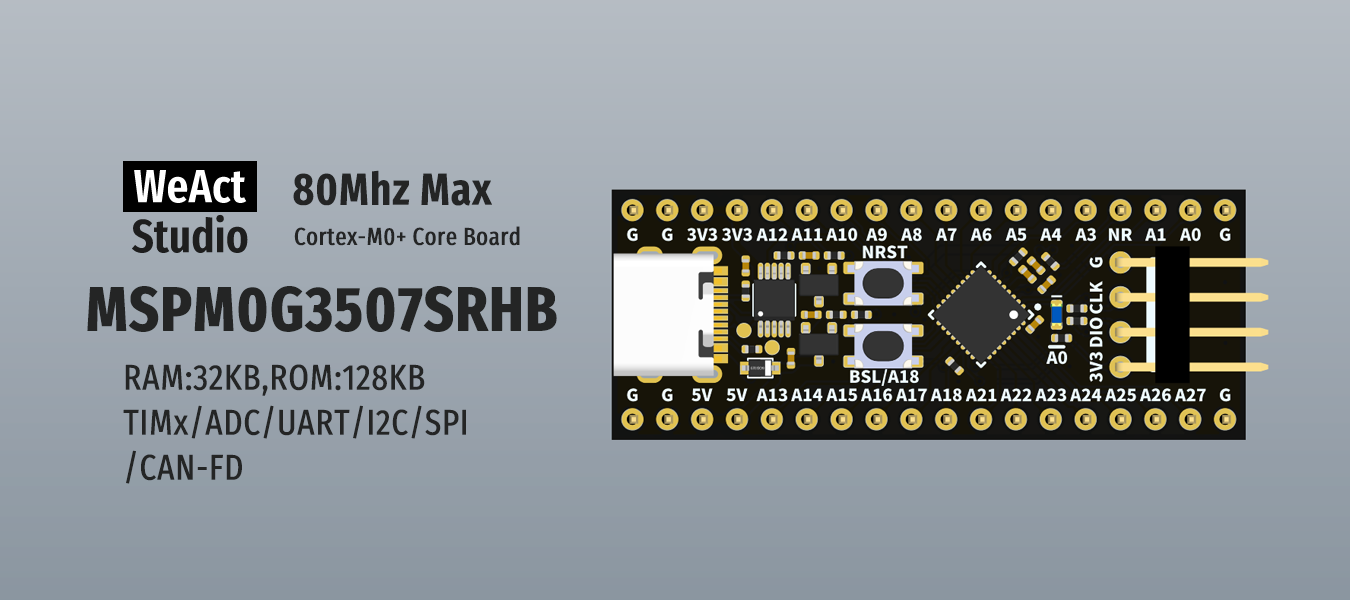 https://github.com/WeActStudio/WeActStudio.MSPM0G3507CoreBoard/
Compiler
CCStudio
This is the official IDE for TI products, the latest is based on the VSCode app
Download url: https://www.ti.com/tool/CCSTUDIO
Linux
The best way is to use the .desktop file to launch the app, the alternative is to run PATH_TO_INSTALL/ccs/theia/ccstudio, but in any case it will fail with the following message:
AppImage: the setuid sandbox is not running as rootTo fix it, you can run it as:
PATH_TO_INSTALL/ccs/theia/ccstudio --no-sandboxYou can also add the following apparmor profile under /etc/apparmor.d/ccstudio
abi <abi/4.0>,
include <tunables/global>
profile arduino PATH_TO_INSTALL/ccs/theia/ccstudio flags=(unconfined) {
  userns,
  include if exists <local/ccstudio>
}
And restart apparmor
sudo systemctl restart apparmorTIP
Generating bin files
For PyOCD, .bin files need to be generated instead of the default .out files, to do that:
- Right click on Project and click Properties
- Tools -> Arm Hex Utility
- Enable checkbox Enable 'Arm Hex Utility'
- Click on dropdown for Arm Hex Utility
- Select General Options
- Enable checkbox Output as bytes rather than target addressing (--byte, -byte)
- Select Output Format
- Select Binary (--binary, -b)
Alternative is to edit flags manually and add this:
--byte --diag_wrap=off --binaryProgrammer
PyOCD
PyOCD is supported, so any compatible programmer can be used.
I'm using the WeAct MiniDebugger to test it.
Installing PyOCD
(I use a virtual env, but a direct install can also be used)
python3 -m venv ~/pyocd
source ~/pyocd/bin/activate

pip install pyocd
Install the MCU Pack
pyocd pack install MSPM0G3507Checking the MCU
pyocd cmd -t mspm0g3507 -vOutput example
0003433 I Target type is mspm0g3507 [board]
0003856 I DP IDR = 0x6ba02477 (v2 rev6) [dap]
0003895 I AHB-AP#0 IDR = 0x84770001 (AHB-AP var0 rev8) [discovery]
0003897 I AP#1 IDR = 0x002e0001 (AP var0 rev0) [discovery]
0003898 I AP#2 IDR = 0x002e0000 (AP var0 rev0) [discovery]
0003900 I AP#3 IDR = 0x002e0003 (AP var0 rev0) [discovery]
0003902 I AP#4 IDR = 0x002e0002 (AP var0 rev0) [discovery]
0003921 I AHB-AP#0 Class 0x1 ROM table #0 @ 0xf0000000 (designer=43b:Arm part=4c1) [rom_table]
0003942 I [0]<e00ff000:ROM class=1 designer=43b:Arm part=4c0> [rom_table]
0003942 I   AHB-AP#0 Class 0x1 ROM table #1 @ 0xe00ff000 (designer=43b:Arm part=4c0) [rom_table]
0003966 I   [0]<e000e000:SCS v6-M class=14 designer=43b:Arm part=008> [rom_table]
0003978 I   [1]<e0001000:DWT v6-M class=14 designer=43b:Arm part=00a> [rom_table]
0003990 I   [2]<e0002000:BPU v6-M class=14 designer=43b:Arm part=00b> [rom_table]
0004008 I [2]<140402000:MTB M0+ class=9 designer=43b:Arm part=932 devtype=31 archid=0a31 devid=0:0:0> [rom_table]
0004019 I CPU core #0: Cortex-M0+ r0p1, v6.0-M architecture [cortex_m]
0004019 I   Extensions: [MPU] [cortex_m]
0004025 I 2 hardware watchpoints [dwt]
0004030 I 4 hardware breakpoints, 0 literal comparators [fpb]
Flash file
pyocd flash -t mspm0g3507 hello-blinky.binTIP
BSL / "Unbrick"
Sometimes the MCU can fail to program and it will be "bricked", the easy solution is to start in BSL mode and run the flash command before 10 seconds To enter into BSL you need to:
- Keep pressed on BSL/A18 button
- Press NRST button
- Release NRST button
- Release BSL/A18 button
There is no other indication about entering this mode, so after the sequence, run the Flash command
Hello World Example
CCStudio
The example at: https://github.com/WeActStudio/WeActStudio.MSPM0G3507CoreBoard/tree/master/Examples/gpio_blink cannot be imported in new versions of CCStudio so the alternative is:
- File -> Create New Project
- Device and Board write
MSPM0G3507select the item underDevice - Select
empty_cppas Project File Name - Click on Import
- Select CCS - TI Arm Clang Compiler
- Next
- Project Name
gpio_blink - Next
The first time it will take some time to download the proper toolchain
- Right click over
empty_cpp.syscfg-> Open with.. -> Text Editor - Copy code from: https://github.com/WeActStudio/WeActStudio.MSPM0G3507CoreBoard/blob/master/Examples/gpio_blink/gpio_blink.syscfg
- Double click over
empty_cpp.cpp - Copy code from: https://github.com/WeActStudio/WeActStudio.MSPM0G3507CoreBoard/blob/master/Examples/gpio_blink/gpio_blink.c
- Project -> Build Projects (or
Ctrl+b) - Refer to Generating bin files section
The example will start blinking the built-in LED every 4 seconds. If you press the BSL/A18 button then it will blink 4x faster, or every second.